
How to Set Up a Stage Timer on a TV or Projector
Keep your timer controls on your laptop and show a clear countdown on a TV or projector. This guide explains the MyStageClock setup options and the checks to run before your event.
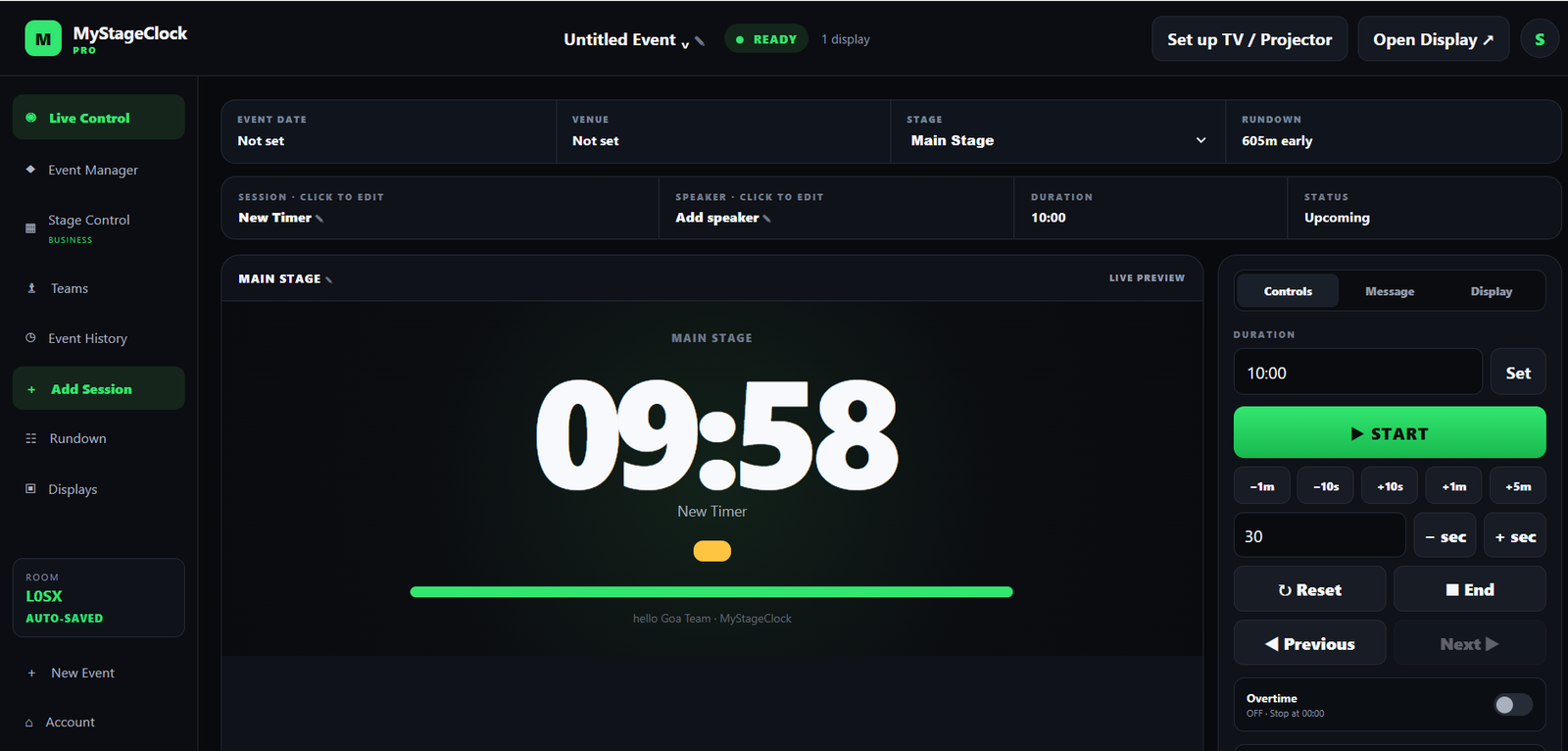
Equipment you’ll need
- Laptop with internet access
- TV, monitor or projector
- HDMI cable
- Compatible video adapter if your laptop needs one
- Your MyStageClock event room
01Prepare your timer in MyStageClock
Open MyStageClock and create or open your event room. Add your sessions, choose their durations, and test start and pause before connecting the screen.
02Open the TV and projector setup guide
Click Set up TV / Projector beside Open Display. The guide explains HDMI, a compatible smart TV browser, and a second computer. It provides instructions and display actions; it does not automatically discover or connect to a TV.
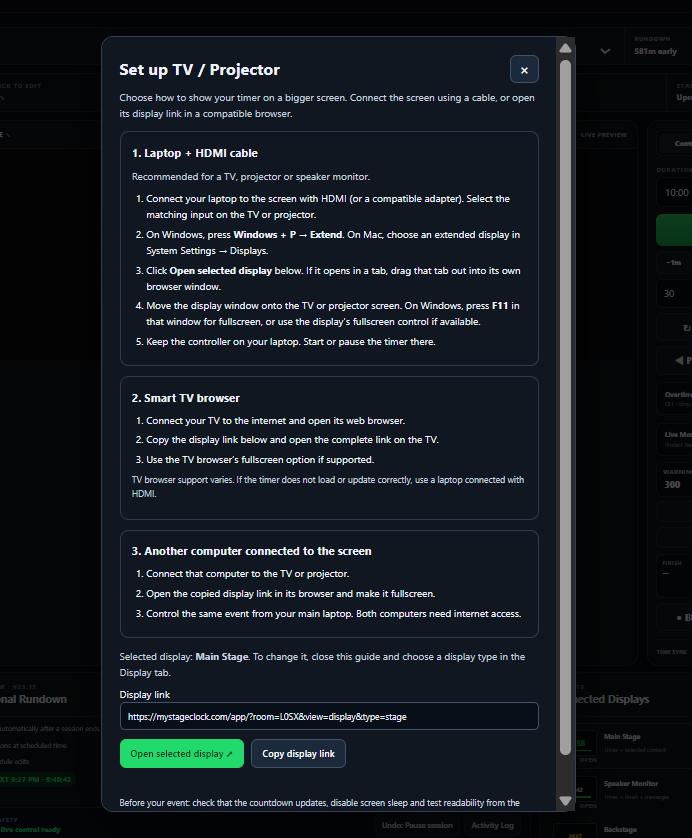
03Connect your laptop using HDMI
Connect your laptop to the TV or projector using HDMI and a video adapter if needed. Turn on the screen and choose the matching HDMI input.
Windows: press Windows + P and select Extend.
Mac: open System Settings → Displays and set up an extended desktop. This keeps the controller on your laptop and the timer on the external screen.
04Open the selected timer display
Choose your display type in MyStageClock. In the setup guide, click Open selected display. If it opens in a tab, drag the tab into a separate window. Move that window onto the TV or projector and enable fullscreen where available. Keep the controller on your laptop.
Test from the speaker’s position
Start, pause and reset the timer from your laptop. Confirm the external display updates. Check that the speaker can read the countdown under your event lighting.
Alternative: a smart TV browser
Connect a compatible smart TV to the internet. Select your display type and use Copy display link in the setup guide. Enter the complete URL in the TV browser and enable fullscreen if supported. Control the timer from your laptop. Smart TV browser support varies; test your model before the event and use HDMI if needed.
Alternative: another computer
Connect a second computer to the TV or projector. Open the copied display link in its browser, move the display onto the external screen, and use fullscreen. Both computers need internet access for this setup. Keep the main controller at your control desk.
Troubleshooting
| Problem | What to check |
|---|---|
| No signal | Check the cable, video adapter and selected HDMI input. |
| Controller appears on the TV | Choose extended desktop mode and move the separate timer window onto the TV. |
| Wrong stage appears | Check the room, selected stage and display link. |
| Timer stops updating | Check internet access and prevent the display computer from sleeping. |
| Timer is hard to read | Use fullscreen and check screen position, brightness and event lighting. |
Before your event starts
- Confirm the correct timer and stage
- Test start, pause and reset
- Test speaker messages you intend to use
- Connect computers to power
- Prevent sleep and keep the browser open
- Check readability from the speaker’s position
- Keep a spare cable or adapter nearby
Frequently asked questions
Do I need a smart TV?
No. A TV with a compatible video input can show the timer from a connected laptop.
Can I keep the controls private?
Yes. Use an extended desktop with the controller on your laptop and the separate timer display on the external screen.
Can I use a projector?
Yes. Use a supported video connection and move the timer window onto the projected screen.
Does the setup button connect to the TV automatically?
It opens setup instructions and display actions. Follow the guide to connect your equipment or open the display link.
Useful setup references
For hardware-specific instructions, see Microsoft’s multiple monitor guide and Apple’s extended desktop guide.